


Let’s be honest—nothing makes your heart drop quite like typing in your website’s URL and seeing a blank white page or a massive error message instead of your homepage.
If you run a business, a broken website feels like an absolute emergency. At Topsia Website Designs, we spend all day building, tweaking, and fixing WordPress sites, so we know exactly how stressful those moments are. But before you start panic-Googling or tearing your hair out, take a deep breath. Most of the scary-looking WordPress errors are actually incredibly common, and better yet, they are usually pretty easy to fix yourself.
(Quick friendly disclaimer: Before you try any of these fixes, please run a quick backup of your site. It’s always good to have a safety net!)
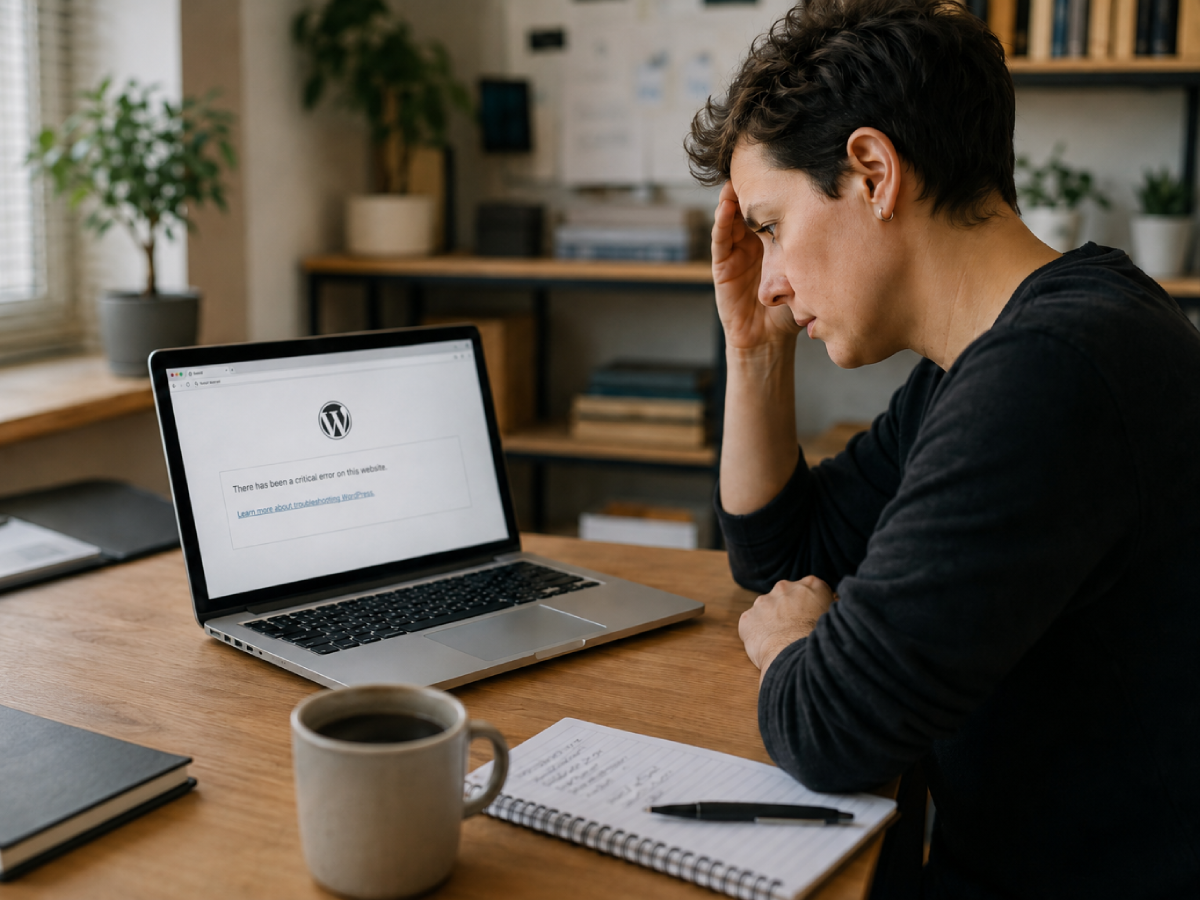
The White Screen of Death
Yes, the WordPress community actually calls it that. You try to load your site, and everything is just… blank. No error code, no text, just white.
Usually, this happens because a plugin went rogue or your site simply ran out of memory.
Quick fix: The easiest way to test this is to turn off all your plugins. Since you can’t access your WordPress dashboard, you’ll need to log into your hosting account’s file manager (or use FTP). Find the folder called wp-content/plugins and simply rename it to something like plugins_old.
Refresh your website. If it suddenly loads, you know a plugin is the culprit! You can rename the folder back to plugins, log into your dashboard, and turn them on one by one until you find the troublemaker.
The vague 500 Internal Server Error
This one is incredibly frustrating because it doesn’t actually tell you what went wrong. It basically just means your server is confused. However, in our experience, 9 times out of 10, this is caused by a corrupted .htaccess file.
The quick fix: Log back into your hosting file manager and look for the .htaccess file in your main website folder. Rename it to .htaccess_backup.
Now, try loading your site again. If it works, head into your WordPress dashboard, click on Settings > Permalinks, and just hit the “Save Changes” button at the bottom. You don’t even need to change anything; just clicking that button generates a brand new, clean file for your site.
Stuck on Briefly unavailable for scheduled maintenance
Have you ever clicked “update” on a few plugins, accidentally closed the tab, and then found your site permanently stuck on a maintenance screen?
When WordPress updates things, it briefly puts your site into maintenance mode. If the update gets interrupted, it glitches and leaves your site stuck there.
The quick fix: This is the easiest fix on the list. Go into your hosting file manager, look in your main website folder, and find a file called .maintenance. Delete it. That’s it! Your site will instantly come back to life.
Still totally stuck?
If you’ve tried the steps above and things are still acting weird, don’t sweat it. Sometimes WordPress throws a curveball that goes beyond a quick five-minute fix.
- Jot down your recent steps: Try to remember exactly what you were doing right before the site broke. Did you just run an Elementor update? Did you install a new security plugin? Knowing the trigger is half the battle.
- Grab screenshots: If you are seeing a specific string of code or an error number, take a screenshot.
- Check your hosting status: Occasionally, the issue isn’t your website at all, but a temporary server outage with your hosting provider.
If you are tired of playing the guessing game and just want your website to run smoothly, drop us a line here at Topsia Website Designs. We specialize in everything from quick WordPress site fixing and Elementor troubleshooting to full-scale, custom web development.
Whether it’s squashing a stubborn bug, optimizing your backend, or completely rebuilding your site so it stops breaking in the first place, we’ve got your back. Reach out today, and let’s get your business back online!