

Let’s be honest—nobody likes a sluggish website. If your visitors are staring at a spinning loading wheel, there is a high chance they will bounce before your homepage even finishes rendering.
At Topsia Website Designs, we love building with Elementor because of its incredible design flexibility. However, without the right optimization strategies, page builders can sometimes make your site feel a little heavy. But don’t worry, speeding things up is usually a straightforward process.
Quick friendly disclaimer: Before you try any of these speed fixes, please run a quick backup of your site. It’s always good to have a safety net!
1. Compress and Resize Your Images
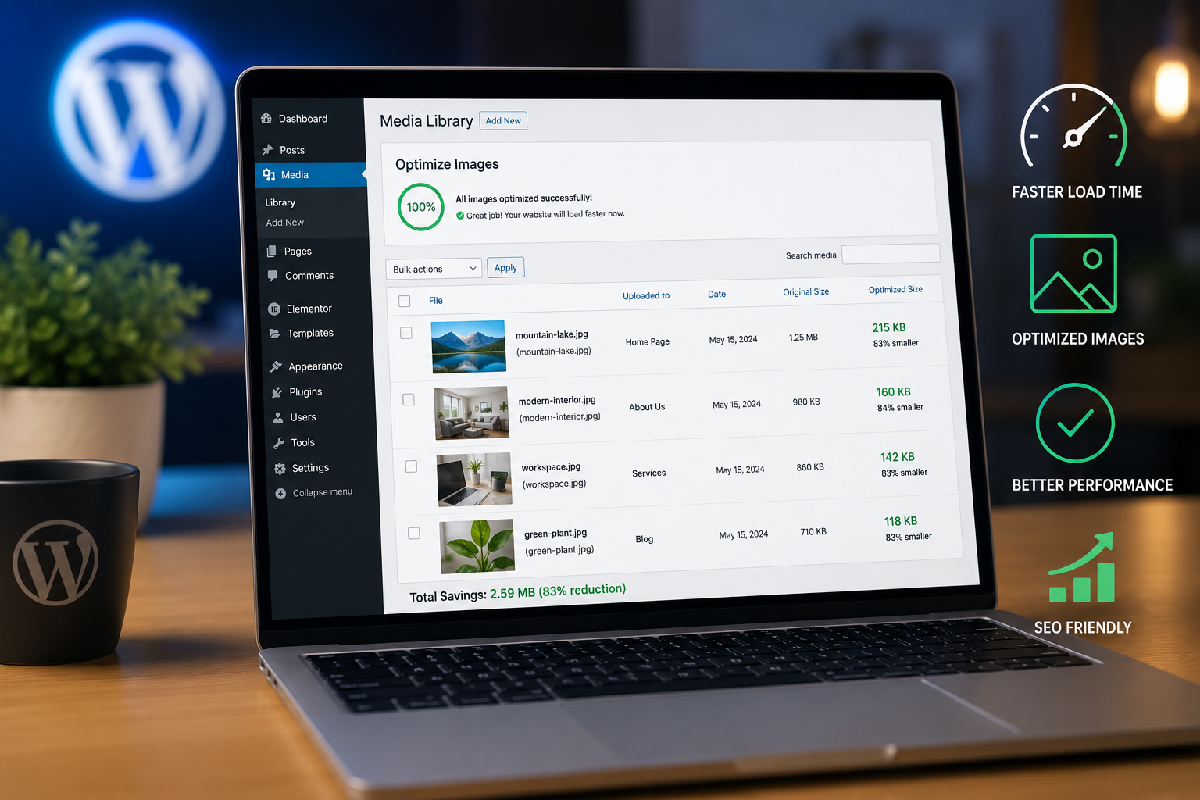
Massive, high-resolution images are the number one culprit behind slow load times. If you are uploading uncompressed photos straight from your camera or stock sites, your server has to work overtime to load them.
The quick fix: Install an image optimization plugin like Smush or ShortPixel. You should also ensure your images are converted to next-gen formats like .webp before uploading.
2. Use a Lightweight Base Theme
Elementor is powerful enough to handle your headers, footers, and page layouts, which means you don’t need a bloated, feature-heavy theme dragging your site down.
The quick fix: Switch to a minimalist, lightweight theme. “Hello Elementor” is the official blank-canvas theme built specifically to run fast with the Elementor builder.

3. Limit Your Third-Party Add-ons
We know how tempting it is to install dozens of Elementor add-on packs to get cool widgets. But every time you add a new plugin, it loads additional CSS and JavaScript files across your entire website.
The quick fix: Audit your plugins. If you only use one widget from a massive add-on pack, consider finding a lighter alternative or disabling the widgets you aren’t actively using in the plugin’s settings.

4. Enable Caching and Minification
If you don’t have a caching strategy, WordPress has to dynamically generate your pages from scratch every single time a visitor clicks a link. Caching saves a static version of your site, delivering it to users instantly.
- Page Caching: Look into caching plugins like WP Rocket or LiteSpeed Cache.
- Minify files: Use these same plugins to safely minify your CSS and HTML files, removing unnecessary spaces and comments to shrink file sizes.
- Elementor Experiments: Go to Elementor > Settings > Features and turn on “Inline Font Icons” and “Optimized DOM Output”.
If you are tired of messing with caching configurations and just want your website to load flawlessly, drop us a line here at Topsia Website Designs. We specialize in everything from performance optimization to full-scale custom WordPress development.
Whether you need to speed up a slow Elementor site, fix bugs, or rebuild from the ground up, we’ve got your back. Reach out today, and let’s get your business moving faster!